Weather in Bangalore : 29°C as at 09:45
  • ~WISH YOU ALL A VERY HAPPY AND WONDERFUL MOMENT.~
Week's Proverb : A nod is as good as a wink.-(To a person who is ready to understand or undertake something, any subtle signalling of it is sufficient)

Theme of the Week

About Me

It is my first time to say hello and do some self introduction to everybody here online. My name is Ashis.P.Donthi, male, 27, from Bangalore, India. I like reading, and do some collections in my spare time.

About Me

It is my first time to say hello and do some self introduction to everybody here online. My name is Ashis.P.Donthi, male, 27, from Bangalore, India. I like reading, and do some collections in my spare time.

About Me

It is my first time to say hello and do some self introduction to everybody here online. My name is Ashis.P.Donthi, male, 27, from Bangalore, India. I like reading, and do some collections in my spare time.

About Me

It is my first time to say hello and do some self introduction to everybody here online. My name is Ashis.P.Donthi, male, 27, from Bangalore, India. I like reading, and do some collections in my spare time.

About Me

It is my first time to say hello and do some self introduction to everybody here online. My name is Ashis.P.Donthi, male, 27, from Bangalore, India. I like reading, and do some collections in my spare time.

Showing posts with label Tutorials. Show all posts

Tuesday, March 22, 2011

How to use Macros

1. Macros


Use the tools in Word's Word Options dialog box to display the Developer tab on the ribbon.

Macros are a great way to automate your work in Microsoft Word. A macro is a set of tasks that can be performed by pressing a shortcut key, clicking a Quick Access toolbar button, or by selecting the macro from a list.

Word gives you a wide variety of options for creating your macro. It can include any command in Microsoft Word.

The options for creating a macro are on the Developer tab of the ribbon. By default, Word 2007 doesn't display the options for creating a macro. To display the options, you must turn on Word's Developer tab.

To display the Developer tab, Click the Office button and select Word Options. Click the Popular button in the left side of the dialog box.

Select Show Developer tab in the Ribbon. Click OK. The Developer tab will appear to the right of the other tabs on Word's ribbon.

2. Preparing to Record Your Word Macro


In Word's Record Macro dialog box, you can name and describe your custom macro. You also have options for creating shortcuts to your macro.

Now you're ready to get started creating your macro. Open the Developer tab and click Record Macro in the Code section.

Enter a name for the Macro in the Macro Name box. The name you choose can't be the same as a built-in macro. Otherwise, the built-in macro will be replaced with the one you create.

Use the Store Macro in box to select the template or document in which to store the macro. To make the macro available in all documents you create, select the Normal.dotm template. Enter a description for your macro.

You have several different options for your macro. You can create a Quick Access toolbar button for your macro. You can also create a keyboard shortcut, so that the macro can be activated with a hotkey.

If you don't want to create a button or shortcut key, click OK now to begin recording; to use your macro, you will need to click Macros from the Developer tab and select your macro. Proceed to step 5 for more instructions.

3. Creating a Quick Access Toolbar Button for Your Macro


Word let's you create a button for your custom macro on the Quick Access toolbar.

To create a Quick Access button for your macro, click Button on the Record Macro box. This will open the Customize Quick Access Toolbar options.

Specify document in which you would like the Quick Access toolbar button to appear. Select All Documents if you want the button to appear while you're working on any document in Word.

In the Choose Command From dialog box, select your macro and click Add.

To customize your button's appearance, click Modify. Under Symbol, select the symbol you would like to display on your macro's button.

Enter a display name for your macro. This will be displayed in ScreenTips. Click OK. Click OK.

For instructions on recording the macro, continue to step 5. Or, keep reading for help creating a keyboard shortcut for your macro.

4. Assigning a Keyboard Shortcut to Your Macro


Word lets you create a custom shortcut key for your macro.

To assign a keyboard shortcut to your macro, click Keyboard in the Record Macro dialog box.

Select the macro that you're recording in the Commands box. In the Press new shortcut key box, enter your shortcut key. Click Assign and then click Close. Click OK.

5. Recording your Macro

After you select your macro options, Word will automatically begin recording the macro.

You can use keyboard shortcuts to perform the actions you would like to include in the macro. You can also use the mouse to click buttons on the ribbons and dialog boxes. However, you cannot use the mouse to select text; you must use the keyboard navigation arrows to select text.

Note that everything you do will be recorded until you click Stop Recording in the Code section of the Developer ribbon.

-ANSAHNIDSU CORPORATION

Sunday, January 09, 2011

JavaScript Part 2

Click the below link to download the JavaScript Codes


Happy Learning
-ANSAHNIDSU

Thursday, December 02, 2010

How to Format and Reinstall Windows XP

Click the below link to download the tutorial


Happy Learning
-ANSAHNIDSU

Wednesday, December 01, 2010

Conditional Formatting

A small example to learn about conditional formatting.
In the example, the aim is to find the names in column A that are present in column C.

Tuesday, November 30, 2010

CSS

Click the below link to download the CSS Codes


Happy Learning
-ANSAHNIDSU

Saturday, November 27, 2010

JavaScript Part 1

Click the below link to download the JavaScript Codes

JavaScript Codes

Happy Learning
-ANSAHNIDSU

Monday, September 27, 2010

Links

Below are the links where you can find lots of stuff. ENJOY...

NIIT Softwares Niit related softwares (IT, Mathlab and Other PC softwares)
Wallpapers 2D and 3D Images
Music Ringtones, Music Bits, Theme Musics
Computer Softwares Convertors, Translators, Editors
My Tutorials Subjects related to Technology


NIIT Formats and Training needed

Keep Smiling...

Monday, August 16, 2010

HOW TO ADD A SIGNATURE IN A WORD


Step 1: This is your desktop. (Above Figure)


Step 2: Click on START and select RUN. (Above Figure)


Step 3: Type eudcedit and click OK. (Above Figure)


Step 4: Private Character Editor Window will be displayed along with Select Code window. Select any block and click OK. (Above Figure)


Step 5: A Grid layout will be displayed. (Above Figure)


Step 6: Write/Draw your signature on the grid using the pen. (Above Figure)


Step 7: Click on Edit menu and select Save Character As… option. (Above Figure)


Step 8: Save Character As Window will be displayed. Click OK. (Above Figure)


Step 9: Close Private Character Editor Window and click on Start- Programs- Accessories- System Tools- Character Map. (Above Figure)


Step 10: Character Map Window will be displayed. (Above Figure)


Step 11: Choose All Fonts (Private Characters) from the drop down box. (Above Figure)


Step 12: Click on Select and then click Copy. (Above Figure)


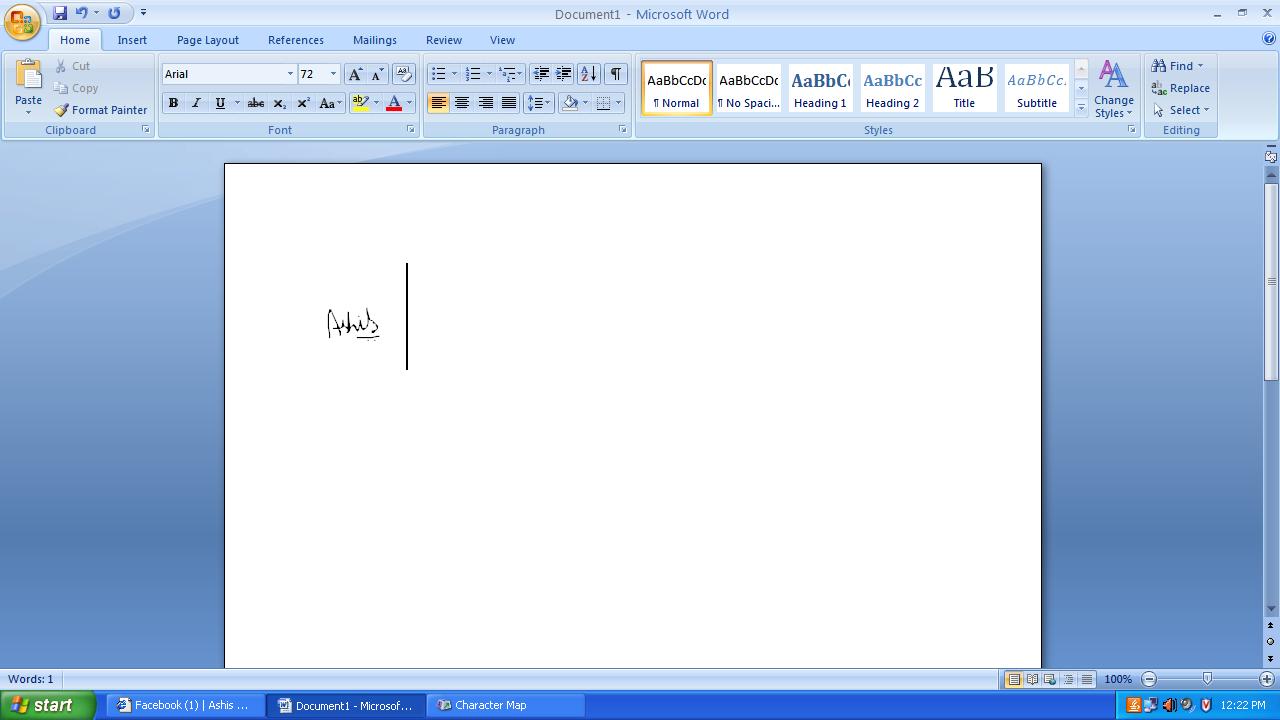
Step 13: Minimize the window and click on Start- Programs- Microsoft Office- Microsoft Office Word 2007 (Word Processor). (Above Figure)


Step 14: Click on Paste option. (Above Figure)


Step 15: Your signature will be pasted. (Above Figure)


Step 16: Select the signature and increase the font size. (Above Figure)


Step 17: That’s it!!! Your Signature is now ready. (Above Figure)

Share

Twitter Delicious Facebook Digg Stumbleupon Favorites More

Free Domain
Audio Streamed by the BroadWave Streaming Audio Server by NCH Software